
Create a case
On the Cases page, click on Create a case and select the appropriate case type.
The available cases types depend on your communities' configuration.
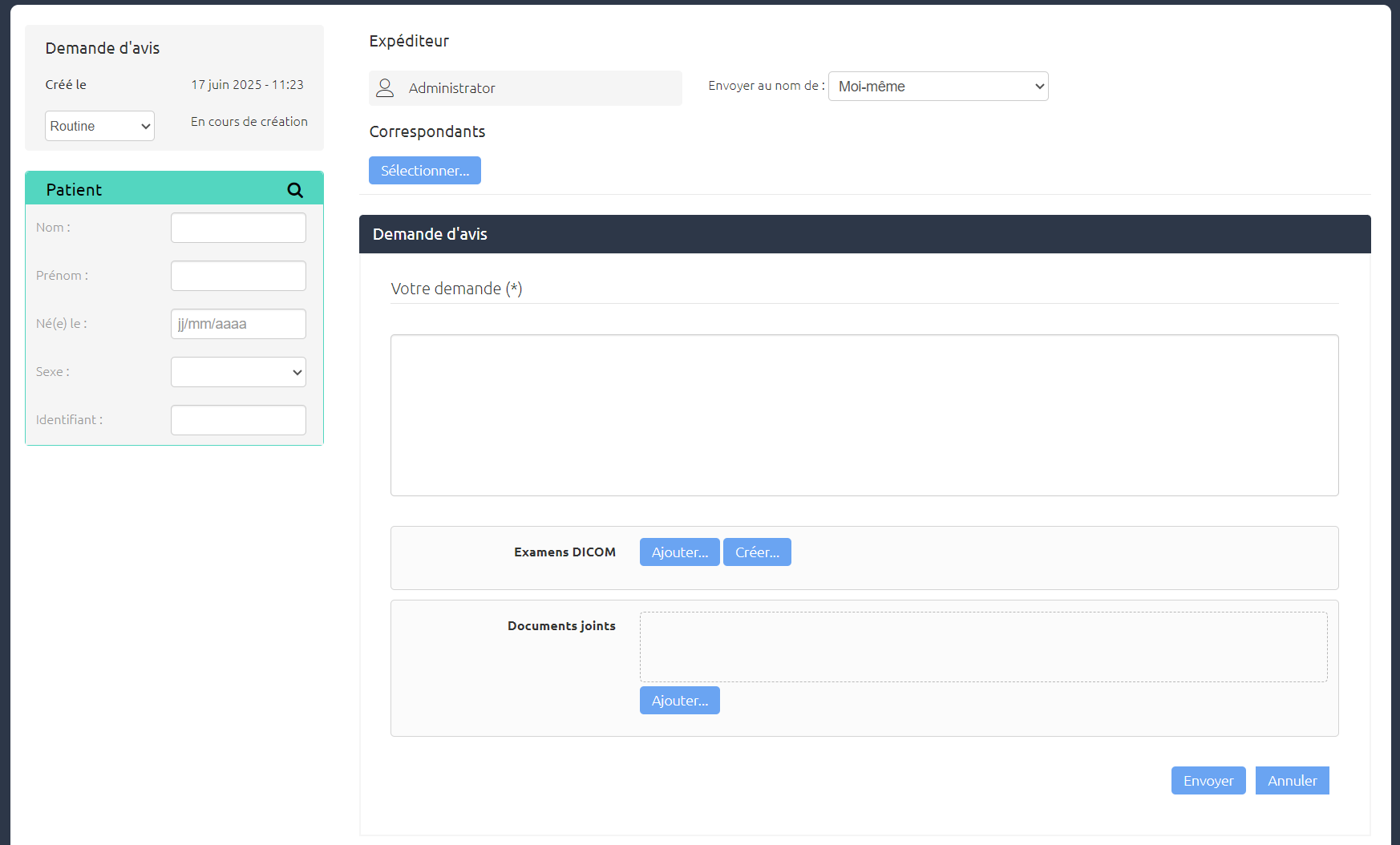
You can then complete the case information.
General information
The case general information insert contains:
-
the case type (Tele-expertise in the example above),
-
the case creation. It will actually be defined when the first step is sent.
-
a response time for the cases configured with a response time. It can be editable or not.
-
the case priority. If the case allows it, you must select the priority level.
Patient identity
Enter the patient identity with the 5 traits.
See Define the patient's identity in a case.
Recipient and author
In the Sender area, you can specify whether you want to send the case on your own behalf or on behalf of a community of which you are a member. A community may have been predefined for some cases.
In the Contacts area, select one or several contacts (physicians or physicians communities).
The contacts come from sites that have been declared in the site directory by an administrator.
Depending on the case type and configuration, contacts may already be selected. If you want to change the contacts, click on the Select button.
When you choose to send a case to a community or on behalf of a community, all users in that community will be able to see and interact with that case.
Request form
In the request form area, the following information can be found:
-
The form name,
-
The form. It will be different depending on the case type.
-
an area to add DICOM Studies. If you do not want to include the entirety of the study in the case, unselect the series you do not want to send.
Depending on the case type, adding studies may not be available.
-
In the DICOM Studies area, you can also add non DICOM files and convert them automacally into DICOM study identified from the case patient information.
For more information, see Create studies.
-
an area to add attachments.
Send the case
To send the case or a subsequent step, click on the Send button.
If a transfer fails, a retry mechanism is executed. At the end of the process, a notification appears in the notification area if the error persists.
The administrator can track the cases transfers, cf. Configure case sending .
Add a step
The only way to interact on a case is to add a step.
Click on Add a step and choose one of the suggested steps, depending on the case type and its progression.
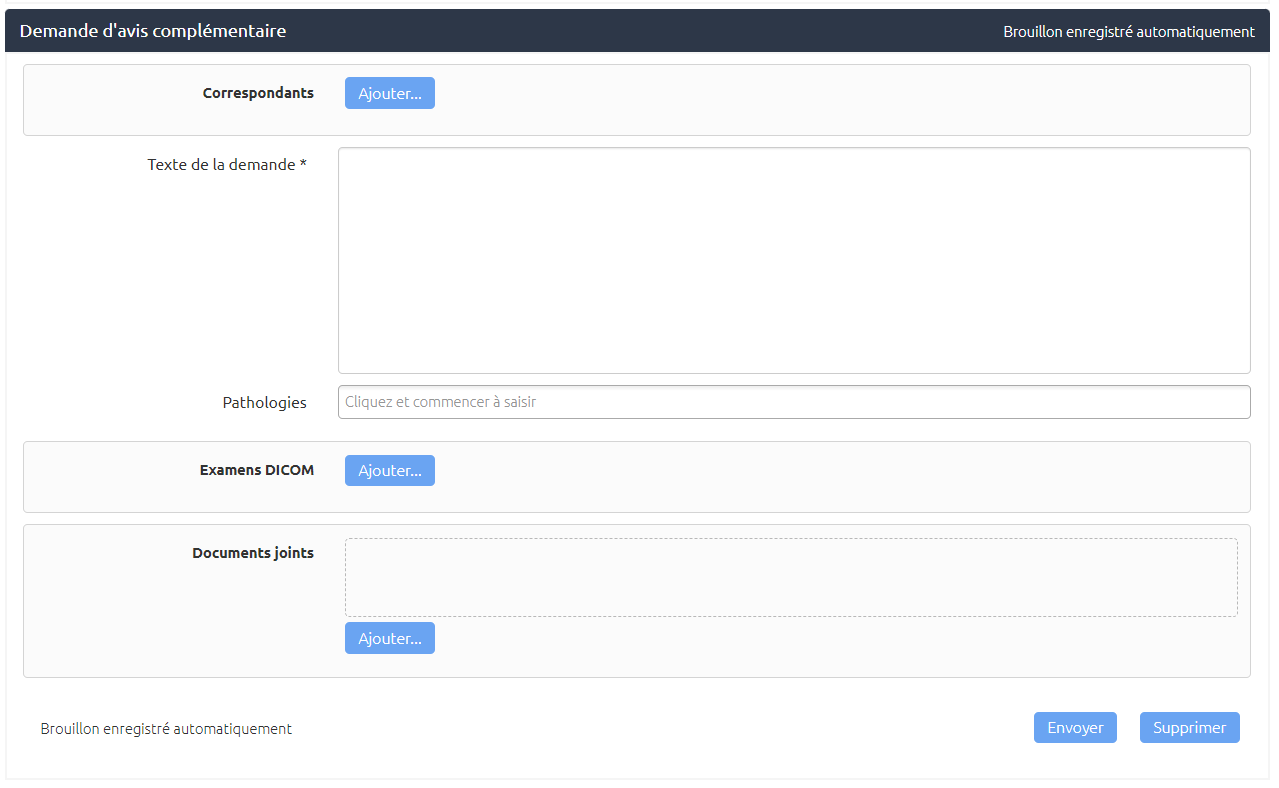
Depending on the step, you can:
-
choose new contacts,
-
fill out a form,
-
add DICOM studies,
-
add attachments.