
If your institution uses a LDAP directory, you can interface Nexus with it to import and update LDAP user accounts into Nexus automatically. Then, you do not need to create and update in Nexus manually, and users can log into Nexus with the login/password they use for other applications.
Depending on the directory organization, it is also possible to match LDAP user groups with the profiles and communities defined in Nexus. In this case, user management is transparent because you do not have to manually associate the imported user accounts with the profiles and communities defined in Nexus. If required, you can also customize the user accounts imported from the directory, including user access rights
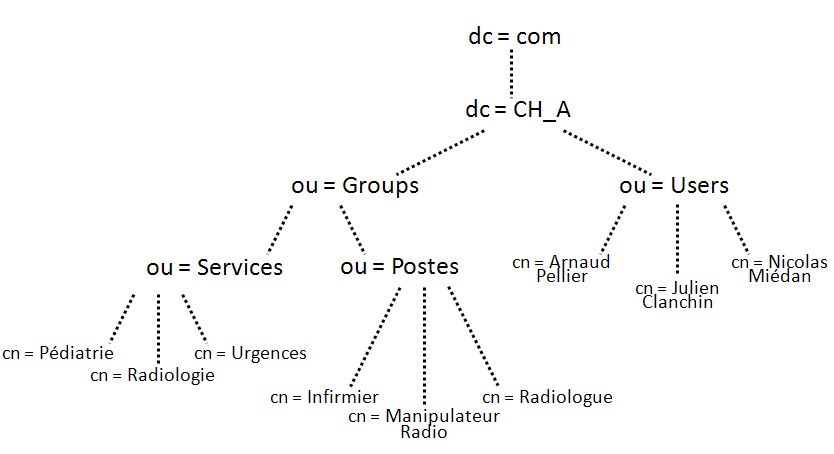
For example, to match the “Radiology” community defined in Nexus with the LDAP directory “Radiology” user group you would specify the “path” (DN, Distinguished Name) to the group in the directory tree as follows:
cn=Radiologie,ou=Services,ou=Groups,dc=CH_A,dc=com
Paths must be entered starting from the lowest level in the directory tree.
Configure Nexus/LDAP directory interfacing
To configure interfacing between Nexus and LDAP directory, click your name in the top right corner of the screen, then click on Administration, and LDAP directory.
Define the server connection
In the Server section, select the LDAP server enabled check box.
If, after importing user accounts from the LDAP directory, you uncheck this box, the imported accounts will be deleted.
-
Fill out Name and Directory type fields.
-
In the Hostname field enter the IP address or hostname for the LDAP server.
-
In the Port field enter the LDAP server default port number (in general, 389) or a dedicated port number if Nexus will connect to the server through an encrypted access. If so, select the SSL connection checkbox.
-
In the Identifier field enter the identifier that Nexus will use to connect to the LDAP server and enter the matching password in the Password field.
Fill out the directory schema
In the LDAP schema section specify where Nexus will import user account information from. Fill out the following fields:
-
Base DN: The root distinguished name (DN) to use when running queries against the LDAP server (dc=UHospital_A,dc=com in our example).
-
Additional Group DN: This value is used in addition to the base DN when searching and importing user groups (ou=Groups in our example). This can be useful if the directory is very large. If no value is supplied, the search will start from the base DN.
-
Additional User DN: This value is used as a filter to restrict searching in the directory (ou=Users in our example). If no value is supplied, the search will start from the base DN.
In the Group schema section, enter the name of the class used for the LDAP user group object (groupOfNames in our example).
In the User schema section, enter the name of the class used for the LDAP user object (Person in our example).
-
In the Filter section you may enter a value to restrict user account import. For example, if you enter the (&(objectclass=person)(cn=*son)) filter, Nexus will only import users with a name that finishes with the “son” letters (for example, Patterson, Robertson, Johnson, etc.).
-
In the following fields enter the LDAP attributes that match the user account fields in the LDAP directory and their equivalent in Nexus.
-
For the Email address attribute option specify if case notifications should be sent to the e-mail addresses specified in the LDAP directory. If required, you can customize this option in the Nexus user accounts.
-
Specify if you want to add users to the “Default” community and thus allow them to access to all the studies stored on Nexus server (whether or not they have been sent to them).
-
Specify if you want users to be visible from other users and communities in your institution and/or from remote institutions. When a user is not visible no cases can be sent to them.
After importing user accounts into Nexus, you can customize the following options for individual user accounts in Nexus: Use for notifications by default, Add the user to the Default community by default, Publish the user in the local directory by default and Publish the user in the public directory by default.
Manage profile attribution
Once you have configured the interface with your LDAP directory on Nexus, you can then specify on each Nexus user profile the DN of LDAP groups which will correspond to this profile. All users in this (or these) LDAP group(s) will be automatically assigned the profile in Nexus.
Enter the Distinguished Names (DN) for the LDAP user group(s) that match the profile. Per example : cn=Manipulateur Radio,ou=Postes,ou=Groups,dc=CH_A,dc=com.
If you enter more than one user group use the “|” (ALT+0124) character as a separator..
For more information on user profiles and rights, see the page Manage user rights.
Manage the association with communities
You can then do the same with communities by filling in the DN field of the LDAP groups for each community. All users in this (or these) LDAP group(s) will automatically be associated with this community.
Enter the Distinguished Names (DN) for the LDAP user group(s) that match the community. Per example : cn=Cardiologie,ou=Services,ou=Groups,dc=CH_A,dc=com.
For more information on community management, see the page Manage user communities.
Manage user accounts
Nexus automatically synchronizes with the LDAP directory at regular intervals according to a frequency defined in the Nexus configuration. If needed, you can also launch a synchronization process at any time by clicking the Synchronize with LDAP button on the administration Users tab..
You can customize user accounts imported from the LDAP directory and create user accounts manually in Nexus to address specific needs. For more information on creating user accounts, see the page Gérer les utilisateurs.