
Before sending studies you can edit information in study images, for example to reconcile patient information with data available on your institution RIS or PACS (storage and archive server), or to anonymize images. However, the studies that you edit remain unchanged on Nexus.
There are two ways of editing DICOM attributes in a study:
-
Edit attribute values manually.
-
Query the institution information system or PACS to check if a record already exists for the patient.
-
Prepare the study(ies) sending (see: Send studies) and check Edit DICOM attributes then click on Send
-
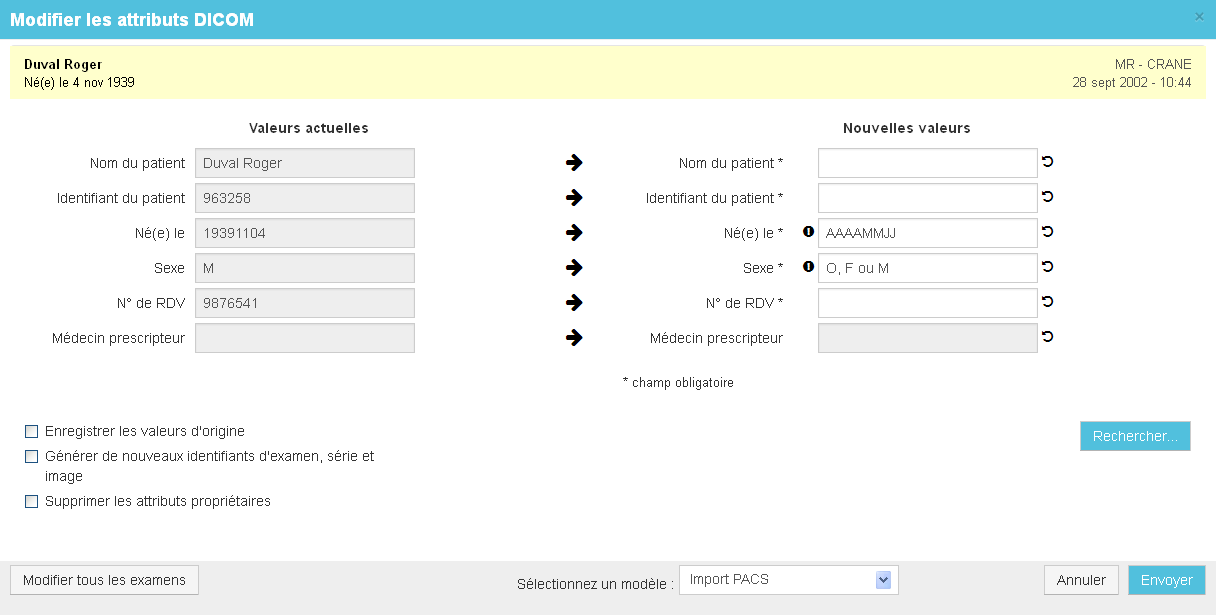
Select the study to edit to view its attributes.
-
If the Select a template list is displayed, select the reconciliation template that best suits your needs.
-
Click on the arrows to paste the current values into the fields in the New values column, and edit the values as needed. If you want to remove an attribute value, do not paste the current value and leave the field in the New values column empty.
-
To fill out DICOM attributes automatically, click the Search button. In the Select patient window select the server to query, enter your filters, select the appropriate patient, and then click the OK button.
If you want to reset the original value of an attribute that you have edited click on the attribute reset button.
-
If you want to keep the old values of the DICOM attributes you have modified in dedicated attributes, and add them to private attributes in image DICOM files, select the Save original attribute values checkbox.
-
If you want to automatically generate new UIDs (Unique IDentifiers) for images when transferring them, as well as for the series and studies to which they belong, select the Generate new study, series and image UIDs checkbox. It is very useful to generate new UIDs in the following cases:: original image identifiers are incorrect or you want to send modified images to a server that stores the original images and not overwrite them.
-
If you want to delete all the proprietary attributes from the image DICOM files, select the Remove private attributes checkbox. If you are anonymizing images, it might be useful to enable this option as it makes it more difficult to find the patient’s name in these attributes.
If you need to edit attributes in several studies for the same patient or to anonymize studies, you can simply edit attributes for a single study and then apply the modifications to all the other studies by clicking on the Edit all studies button.
-
Click on the Send button.
The NEXUS LOCAL destination allows you to save the study to your server: you can modify the identifier of a study and save it on your Nexus server for correction or anonymization before sending it out.
The reconciliation/anonymization templates are configured via the Reconciliation page in the Administrator area. Please contact your Nexus administrator if you need to perform these tasks.