
Open a viewer
You can view studies images in a viewer. By default, Nexus is installed with Mobile Viewer which offers manipulation functions conventionally used by clinicians.
To display a study proceed as follows on the Studies page:
-
Double-click on the study (in basic view you also can double-click on a series).
-
Select the study, and then click the View button (at the page bottom or in the Actions menu)
You may have multiple viewers available.
Warning: Not all viewers have the regulatory certificate making them suitable for diagnostic use. Consult the documentation of the viewer used to verify this aspect.
If you prefer to view a study on your usual diagnostic workstation, you simply need to transfer it. To do this, select the study, click on the Actions button (at the right of the Add studies button) and on Send to workstation/PACS, then select the destination you want in the window that displays. If the workstation you want is not listed, contact your administrator to check if it has been declared in Nexus.
Mobile Viewer features
Warning: Mobile Viewer does not have the regulatory certificate making it suitable for diagnostic use. This viewer is intended for preview only. For diagnostic use, please use an expert viewer, available as an option.
|
Click on |
To |
|---|---|

|
Show/hide patient information. |

|
Scroll through images. |

|
Perform windowing. You can window images manually or apply predefined windowing to them. Warning: this functionality is accessible both when the compressed image is displayed (JPEG version) and for the original image (DICOM). The image pixel values as well as the calculation methods of the brightness and contrast adjustment functionalities are different in the case of a JPEG image or a DICOM image. When you switch from a JPEG display to the DICOM display, the effect of this adjustment is different. It is recommended to use this feature on the original image (DICOM). |

|
Invert colors/grayscale. |

|
Zoom images in/out. |

|
Magnify an area in an image. |

|
Move the area viewed in an image. |

|
Rotate images counterclockwise. |

|
Mirror images horizontally. |

|
Cancel your changes. |

|
Scroll through images in cine mode. |

|
Export images (see details below the table). |

|
Compare series. |

|
Display images in full-screen mode. To exit this mode press the ESC key. |

|
Online help. |

|
Exit. |
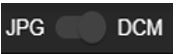
|
Choose the display quality (JPEG or DICOM). For each of the series displayed, you can choose to display the images in compressed version (JPEG). This allows for faster viewing (“preview”). When this choice is applied, an LQ symbol notifies the user of the display mode. If the image corresponding to the DICOM data is displayed, the HQ symbol is displayed. |

|
Select the number of images to display per screen. |
The changes you make are not saved in images.
You can save the study to your computer or to a network directory by clicking on the Save button and then Export the study in DICOM format. After unzipping the study, you can view it on your usual workstation or in the Viewer Lite software provided with the study. To view the studyin Viewer Lite, click on start.exe in the directory obtained after unzipping.
It is also possible to save a JPEG version of the images to archive them or reuse them in documents for example. Click the Save button and then Export the study in JPEG format to download the entire study or Export the image in JPEG format to download only the currently selected image.