
The case has been designed to address multi-expertise needs among institutions or internally for managing trauma cases, persons with multiple traumas, in multidisciplinary staff meetings, etc. Cases allow you to:
-
Communicate with more than one contact simultaneously.
-
Transfer the case to additional contacts.
-
Add several steps to the same case to address a variety of medical workflows.
-
Add DICOM studies and other document types (reports, non-DICOM medical data, etc.) at any step of the case.
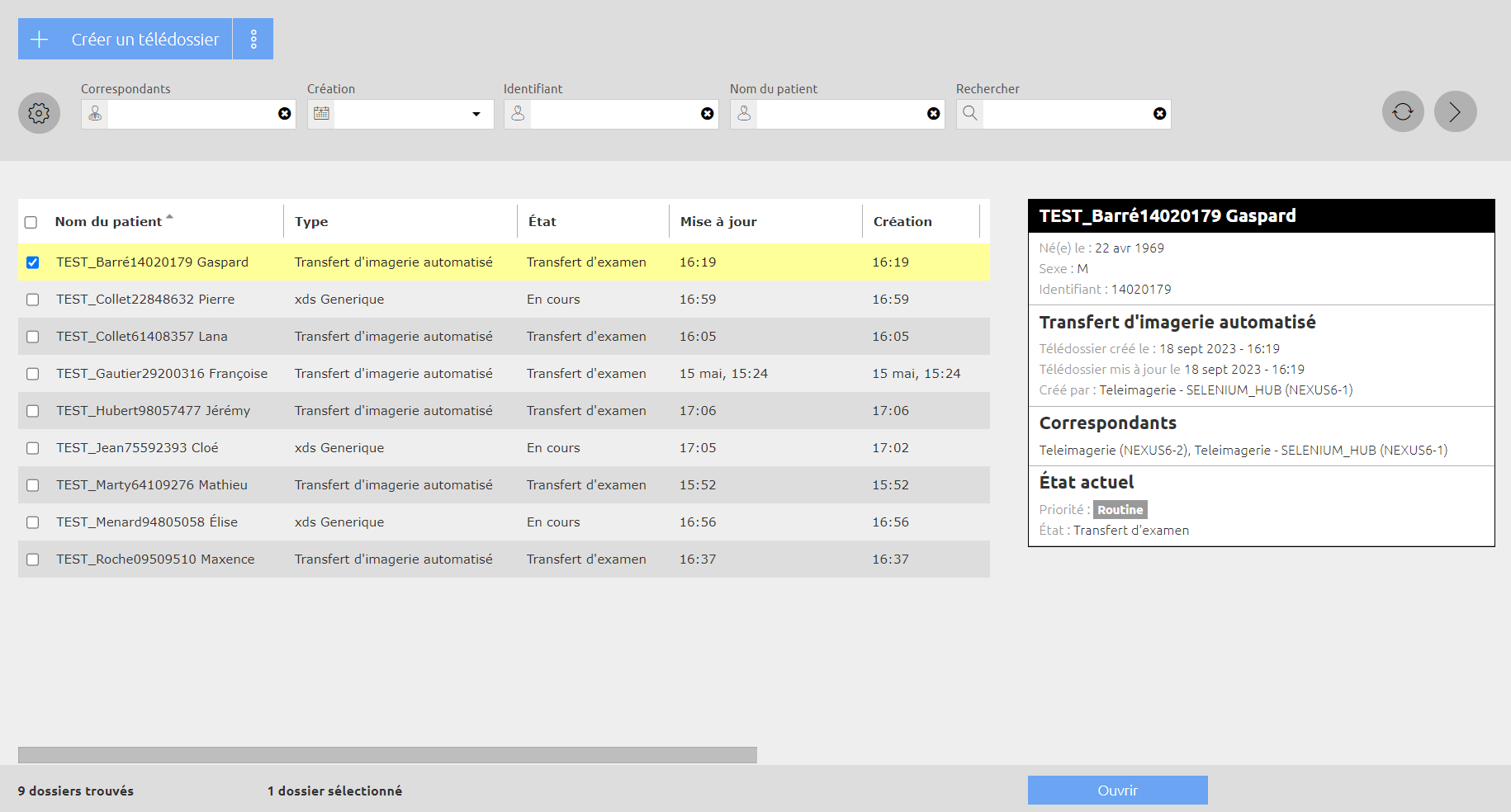
The Cases page lists the cases:
-
That you created in your own name or in the name of a community that you are a member of.
-
That were created by members of your community(ies).
-
That were sent to you personally or to a community that you are a member of.
-
If you have a supervisor role, all the cases sent and received in your institution
There is an advanced search function that allows you to search for text within the case forms.
Configure list display
Preview
On the list right side, a pannel allows to preview the selected case. The preview allows you to display detailed information about the patient as well as general information relating to the case.
The preview can be displayed/hidden by clicking on < or >.
Columns
You can reorganize columns and select the ones you want to display according to your needs:
-
To move a column, point on its title and hold the mouse button down while moving the column to the location you want.
-
By default, all the columns are displayed. If you want to hide some of them, click on the Configure button, then on Configure columns.
Filters
You can add filters to those provided by default by clicking on the Configure button and then on Configure filters.
The Find filter allows you to search all columns at once (including hidden ones).
When you enter a value in a free-text filter (such as Patient’s name, Identifier), click on the Refresh button ou press the ENTER key to start the search. When you fill in list filters (such as Updated, Gender), the search starts automatically. Likewise, the page is automatically refreshed when you remove a filter.
Actions on cases
All the actions you can perform on cases are listed in the Actions menu (button to the right of Create a case).
-
Open: Open the selected case to view and/or add to it.
-
Delete: Delete cases from your establishement’s Nexus server. In other words, potential contributors to the cases will no longer be able to access them.
-
Print: Print the selected case forms on paper or in a PDF file. (In the case, it is also possible to convert the forms to PDF and to add the mention “Medical Confidential”).
-
Export the list: Save the filtered or unfiltered cases list in a CSV, HTML or PDF file.
The available actions may vary according to the rights assigned to you by the administrator.
To select multiple cases, check them individually or, for quicker selection, use the SHIFT or CTRL keys. To cancel a selection, simply click on a non-selected case.