Nexus Runtime is the application base for specialized modules. Functionalities of Nexus Runtime are reduced to the essential allowing specialized modules to enrich the platform.
This user manual covers specific Nexus Runtime features only. You must refer to the user manuals of the modules for the corresponding functionalities.
Interface organization
After authenticating, you are taken to the main interface of the product.
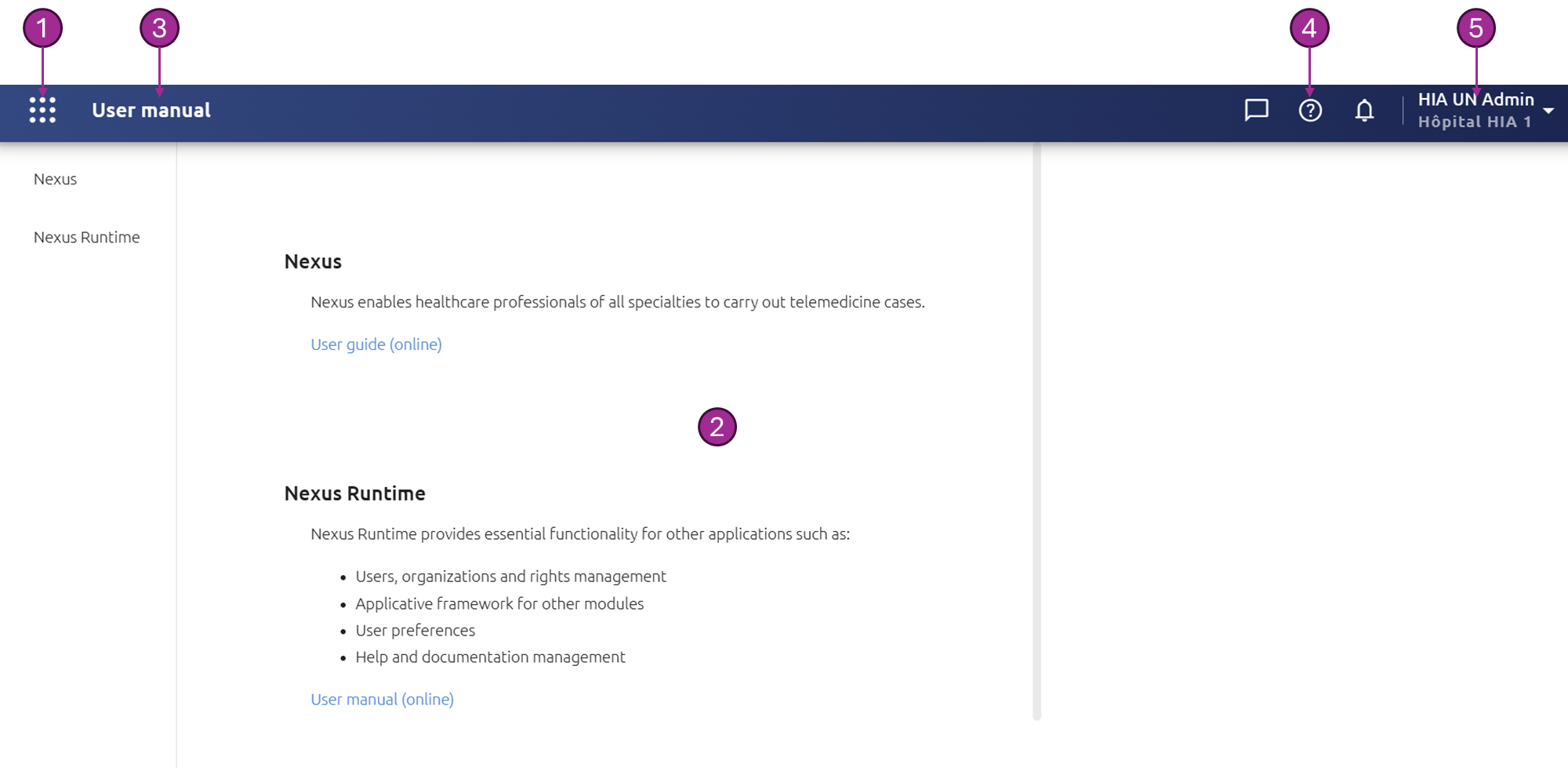
-
Navigation menu
-
Main page which can be a Runtime page or an application module.
-
Main page name
-
Quick menu showing access to certain elements such as help, notifications or menus from application modules
-
Your username and your establishment, with access to My profile, My preferences and Context selection by clicking on it
Navigation
When you click on the Quick Menu icon, you can access the navigation menu to the main pages available to you.
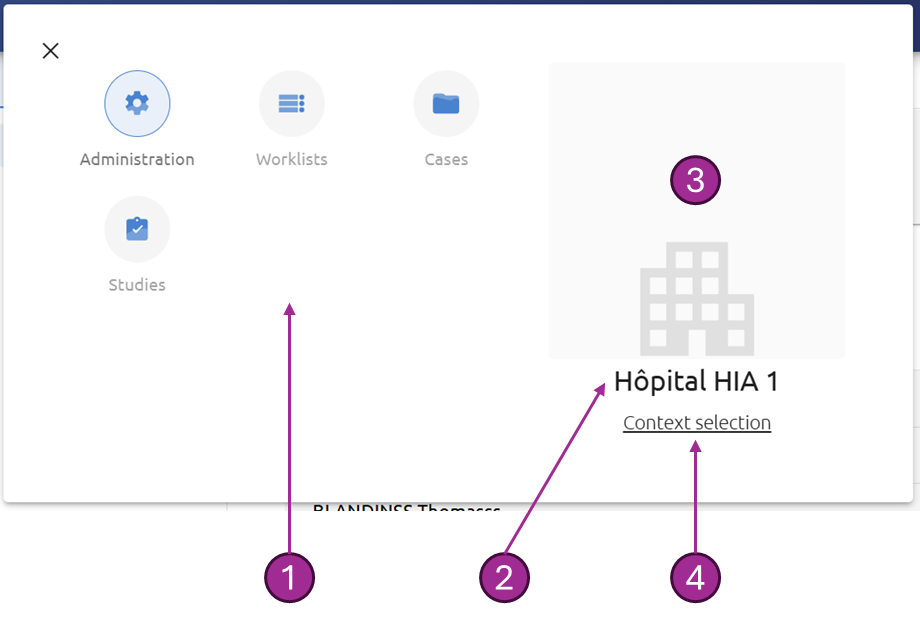
-
Pages: the list of pages that you can access depends on the application modules installed as well as your rights
-
Establishment name to which you are attached
-
Establishment image which can be customized
-
Context selection if you are attached to several establishments
My profile
The My Profile page gathers information about you. You have the possibility to modify certain information.
The Email and Phone are used when sending notifications related to authentication such as sending a link to reset your password or sending an ephemeral code to access the application with a higher level of security than a simple login / password.
The National identifier can be filled with your RPPS or ADELI to log in via Pro Santé Connect.
You can view the list of services to which you are assigned in the Assignments section.
The Permissions section lists the roles that have been assigned to you in your establishment.
My preferences
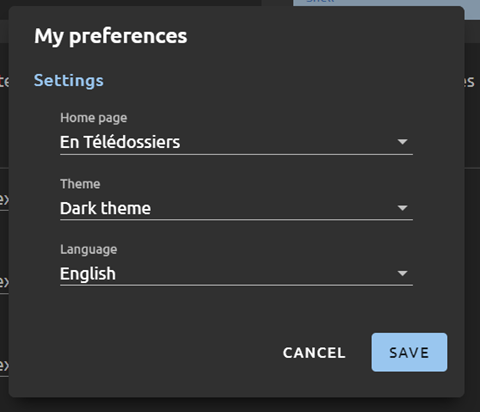
You can change some application settings to personalize your experience such as:
-
Home page
-
Theme
-
Language
If you are attached to several contexts, these preferences can be configured on each context.
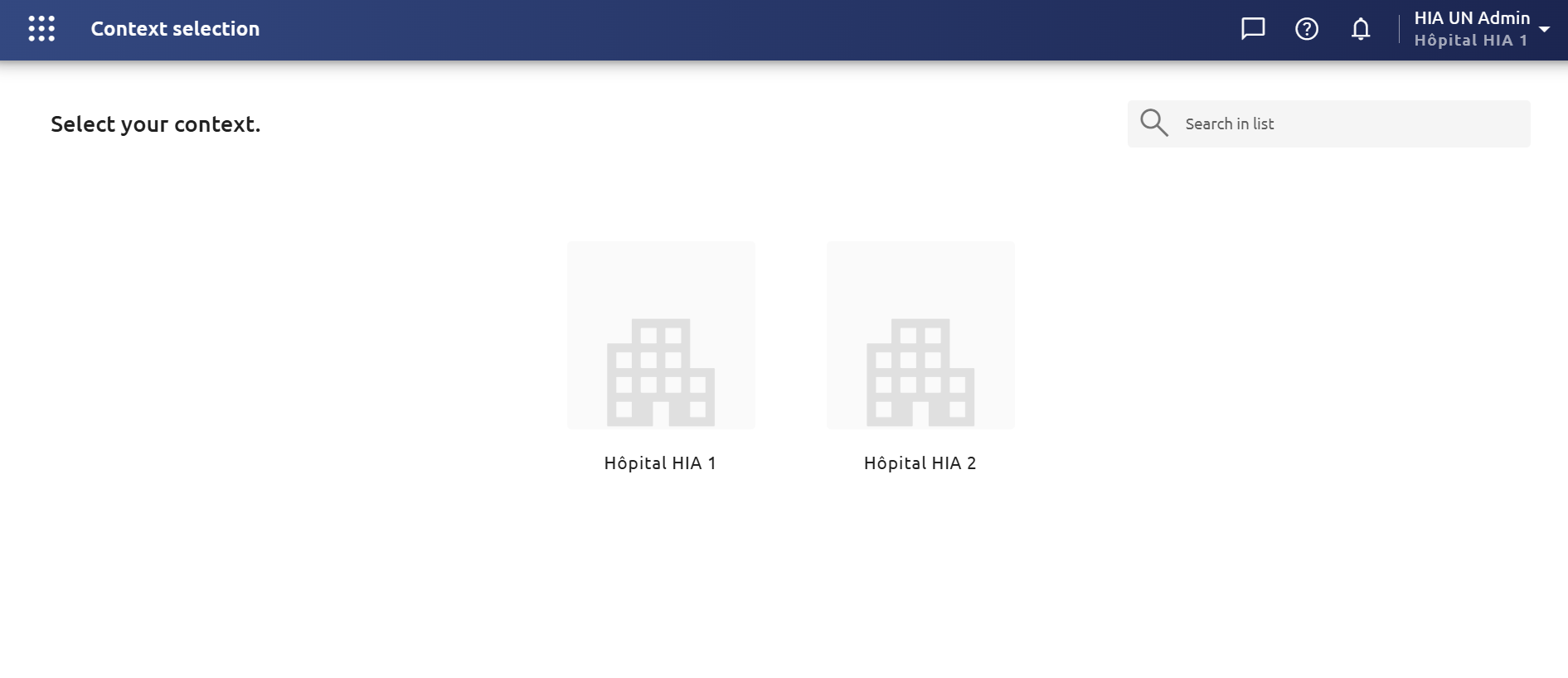
Context selection
If you are attached to several establishments, you can select the context with the quick menu or by clicking on your name.
Click on the desired establishment to access it. To find it more quickly, type its name in the search bar.