
Rights management allows you to create roles to which rights will be associated. These roles are then assigned to users and this will allow their permission to be defined with regard to possible actions on the platform.
To access rights management, click on Administration, then Directory and finally on Rights management.
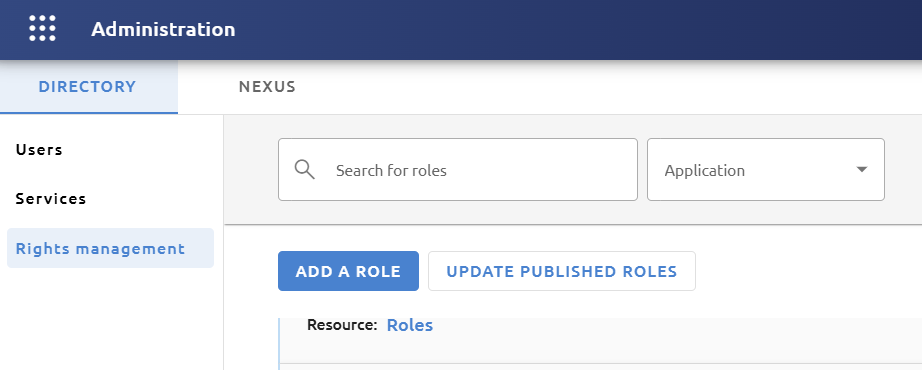
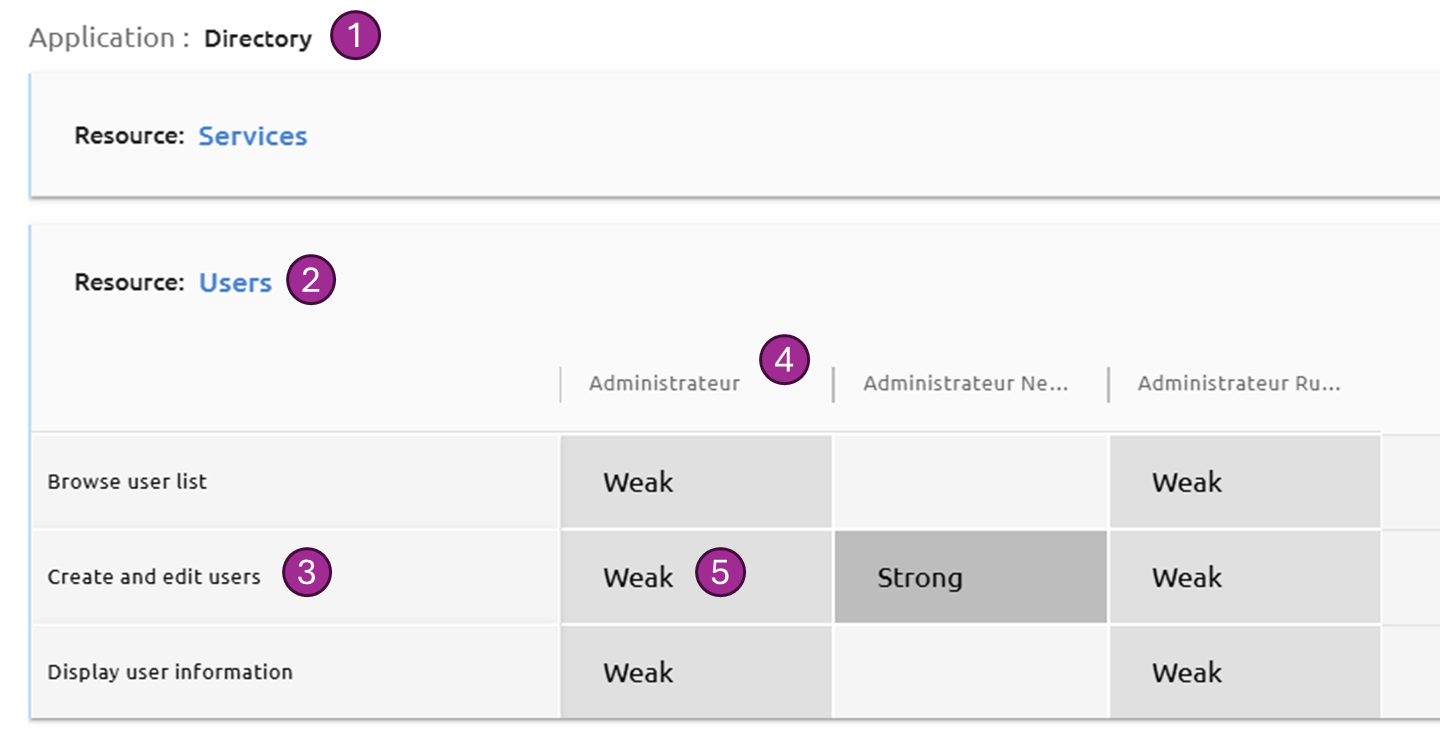
The page displays the following matrix:
-
Application. The rights are organized by application. The Nexus Runtime contains a few of these. If additional applications have been added such as a Chat module, these rights will appear here. In the example above, this is the Directory application which is a Nexus Runtime application.
-
Resource. Each application can organize its rights by resource. In this example, the Directory application has 2 resources: Users and Services.
-
Rights. In each resource, there is therefore a certain number of rights representing user actions.
-
Role. The name of the role is presented at the head of the column above the definition of its permissions.
-
Permission level. There are 2 permission levels (weak and strong) which are related to the authentication mode that users will use for their connection. Thus, if a user has a STRONG level permission for a right, they will only be able to use the functionality associated with this right if they are connected via a STRONG authentication mode, as with the use of an Ephemeral code for example. If they just used their login and password, the feature will be disabled.
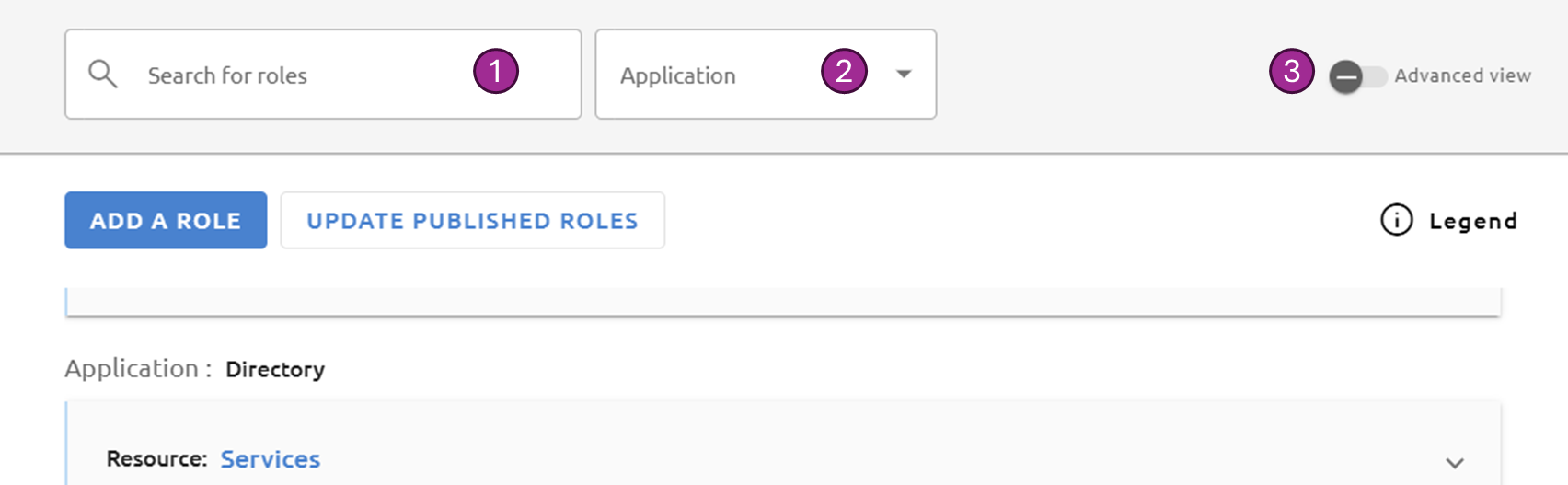
Rights management is therefore essentially presented as a matrix of roles and rights. Filters can be used to search for information in this matrix.
-
Filter on role names
-
Filter on applications
-
Advanced view. Certain rights can be considered as of Advanced level and are therefore not displayed by default in the matrix. Activate this button to see all rights. Only superadmin users can view these rights and assign them to roles.
Add role
Click on Add a role and give it a name. It is then added to the matrix without any permission.
This role will only be available to users in your establishment.
Define permission levels
After creating a role, you can then set the permission level for each right in a resource.
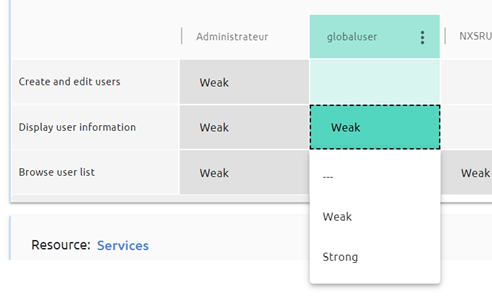
Click on the box at the intersection of the right and the role and select the desired permission level. If you don't want to give permission, choose the value ---. You can start again in the same way for all the rights in the same resource. To finish setting permissions on this resource, click Save.
It is not possible to set permissions for a role for several different resources at the same time.
Edit role
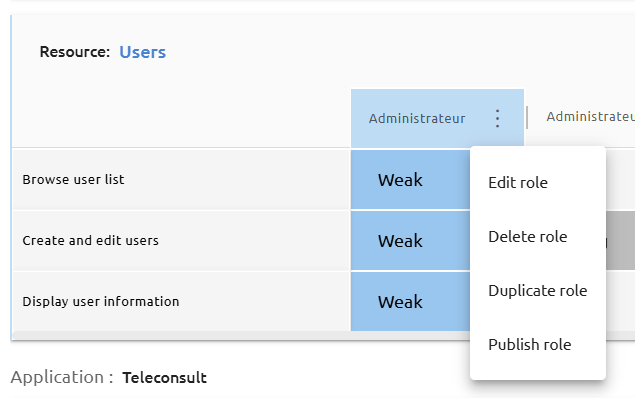
To change the name of a role, click the name of the role you want to change, then click and choose Edit role.
Duplicate role
If you want to create a role similar to another without having to set permissions for all rights, you can duplicate a role.
Click the name of the role to be duplicated, then click on the Menu icon and choose Duplicate role. Give it a name. It will then be added to the matrix with the same permissions as the initial role for each of the rights.
Publish role
This feature can only be used if your establishment has been configured to administer other establishments (called child establishments).
If you want to add a role to your child establishments from your establishment, you can publish this role.
Click on the name of the role to publish, then on the Menu icon and choose Publish role. It will then be added to the matrix of your child establishments with the same name and the same permissions for each of the rights.
This published role will only be editable in your establishment. Any modification will be reflected in the child establishments (change of name or permissions, deletion).
If child establishments are configured for your establishment, the rights list includes the child establishments' list. This allows you to configure permissions that are exclusive to them for the published roles.
If the child establishments' list is updated or if the rights list of your establishment or one of your child establishments is modified, it is necessary to update published roles. It allows to manage any inconsistency that may occur as a result of these modifications.
Click on the Update published roles button.
Delete role
To delete a role, click the role name, then click on the Menu icon and choose Delete role.