
From the navigation menu, choose Administration, go to Directory and then select the Users tab. This tab presents the list of users identified in your establishment.
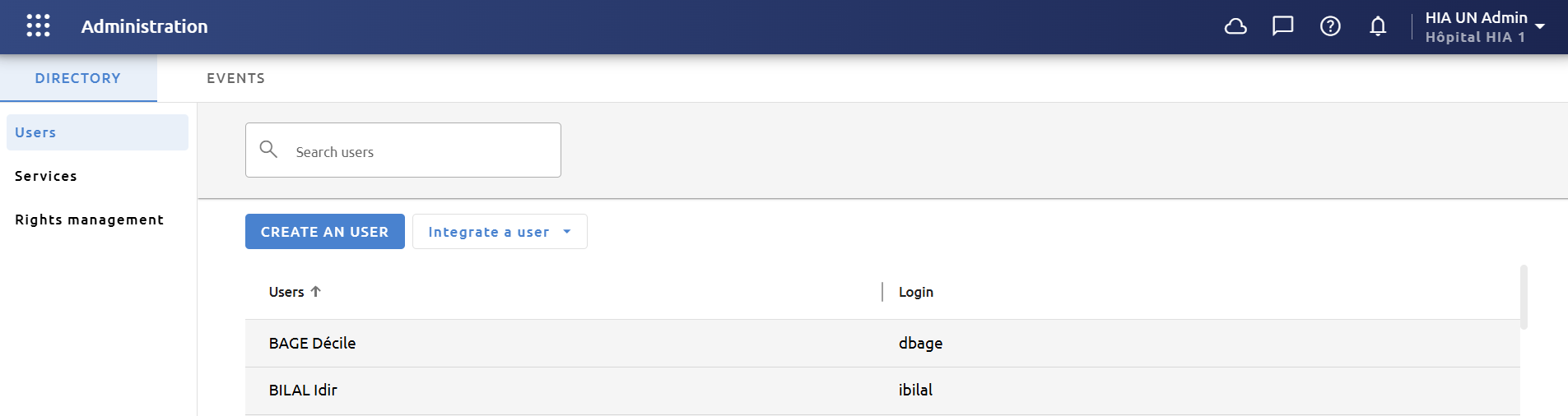
The sorting order can be changed by clicking on the column titles. You can also search for a user by their surname, first name or login using the search bar.
From this page you can:
-
Add a user
-
Integrate an existing user
-
View and modify a user
-
Remove a user from your establishment.
Create a user
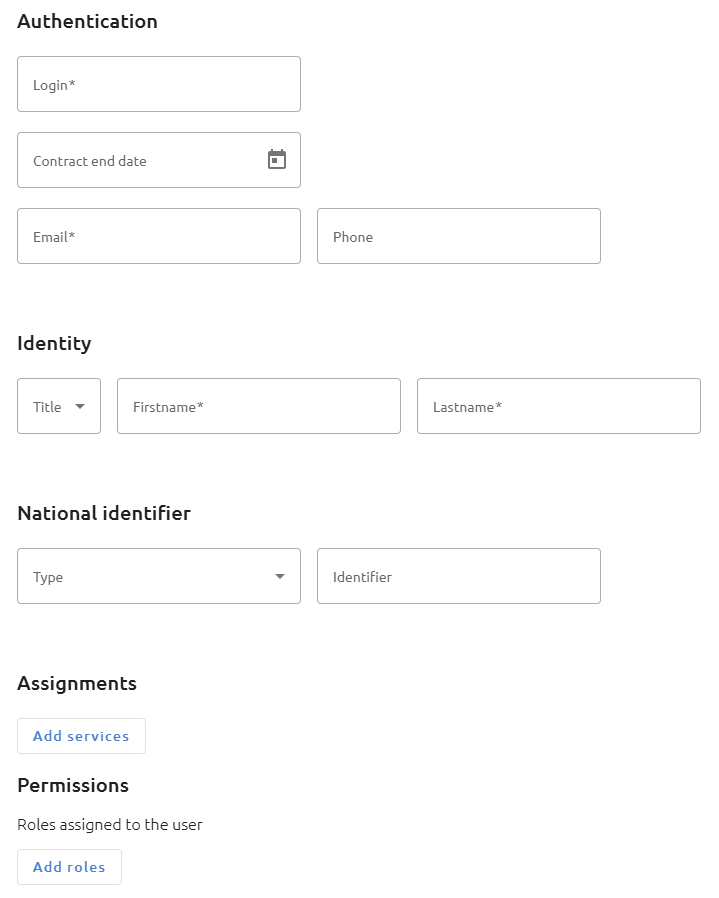
From the list, click on Create a user. You can then complete the following information:
|
Information |
Description |
|
Authentication |
The Contract end date is used to automatically remove a user from your establishment. For an indefinite period, leave blank. The Email address and Phone are used when sending connection notifications such as sending a link to reset your password or sending an ephemeral code to dispose authentication with a higher level of security than a simple login / password. |
|
Identity |
User identity |
|
Identifiers |
You can enter the national identifier by selecting the type then its value. The national identifier is required to access the platform if you log in via Pro Santé Connect. (cf. Authentication). The national identifier value is the concatenation of the type (pre-filled after selecting the type) followed by the person’s identifier. It corresponds to the 1st line on the front of your CPx card. |
|
Assignments |
You can assign the user to one or more services (cf. (3.1-en) Services management). |
|
Permissions |
You can assign one or more roles to this user (cf. (3.1-en) Rights management). After creating the user, you have the option to add exceptional rights. This functionality is subject to a right, contact your administrator if necessary. The rights of a user are defined by the rights provided by each of their roles as well as their exceptional rights. |
Other information may be present if additional modules have been added. Refer to the documentation for those modules if this is the case.
After the account creation, the user receives an email to set their password (cf. First login). Then, they can access the application.
Create a user from the french Health Directory
The french Health Directory is a national public directory listing healthcare professionals.
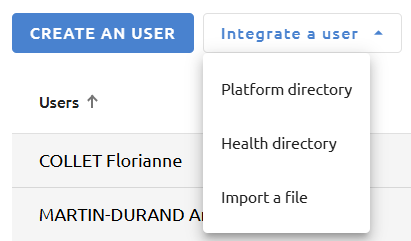
To create a user from the french Health Directory, click on Integrate a user and then Health directory.
You can search for a healthcare professional by their last name, first name, or national identifier. To create a user, select them and click on Integrate. Then fill in any missing information and save.
The Health Directory may not return any results if it is unavailable. The service status can be checked on https://status.annuaire-sante.esante.gouv.fr/ (API FHIR Annuaire Santé).
If a healthcare professional has multiple work situations, they may appear more than once in the list. The information used to create the user is the same no matter the selected row.
Integrate an existing user
A user can belong to several establishments with the same account. If the user you want to add already exists in the platform, you can integrate them into your establishment by clicking on Integrate a user then Platform directory.
A user integrated into an establishment has neither a service nor a role. As these depend on each establishment, they must be filled in after integration.
Import users
Importing users allows to create or integrate users in the establishment more quickly.
You can import up to 50 users at a time by clicking on Integrate a user then Import a file.
The import file must be a CSV file filled in as follows:
login;lastName;firstName;email;healthcareServices;roles;idNat_PS;mobile
jdupond;Dupond;Jean;jean.dupond@adresse-email.com;Service A|Service B|Service C;Rôle A|Rôle B|Rôle C;810005678901;0606060606
The header identifies the fields. It must not be modified. Each line below the header corresponds to a user. The order of the fields is as follows:
-
Login
-
Last name
-
First name
-
Email
-
Services
-
Roles
-
National identifier
-
Phone
The fields rules on the interface (mandatory or optional, format) also apply when importing users. National identifiers must be entered in full (example: include the “8” at the beginning of the RPPS number).
Roles and services are identified by their name (case-sensitive). If the user belongs to several services or has several roles, the separator between services or between roles must be a vertical bar '|'.
The separator between fields must be a semicolon. To leave an optional field empty, do not delete the semicolon(s) surrounding the field. For example, for the national identifier :
jdupond;Dupond;Jean;jean.dupond@adresse-email.com;Service A;Rôle A;;0606060606
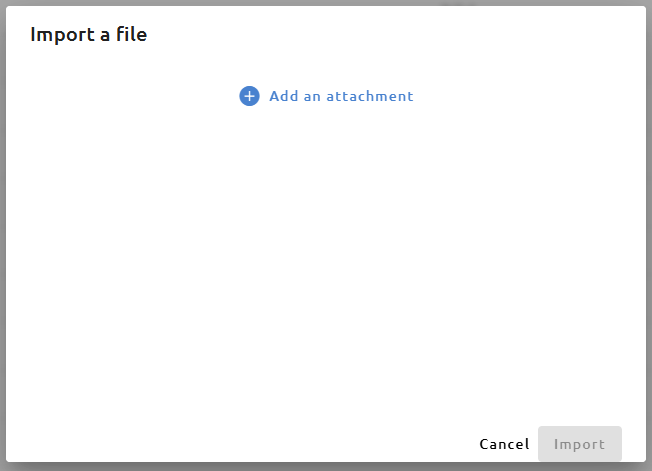
Add the CSV file then click on Import. The application first checks the file format: CSV, header, number of fields, mandatory fields filled in, etc. If an error is detected, the import is aborted.
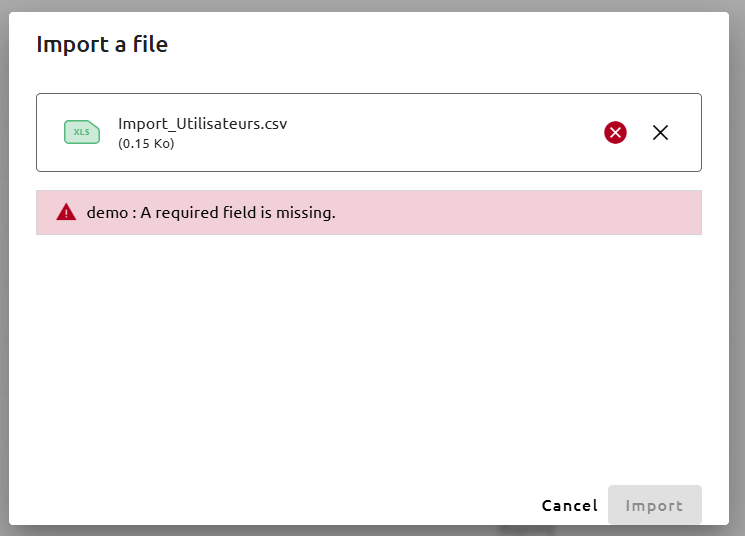
If the file format is correct, the import proceeds. For each line in the CSV file:
-
If no user has the same login and email address, the user is created in the establishment, using the information filled in the CSV file.
-
If a user in another establishment has the same email address, that user is integrated in the current establishment. The services and roles filled in the CSV file are added to their account. Their other information remains unchanged.
The final result is displayed. Users may not have been created or attached to the establishment for reasons specified in the interface.
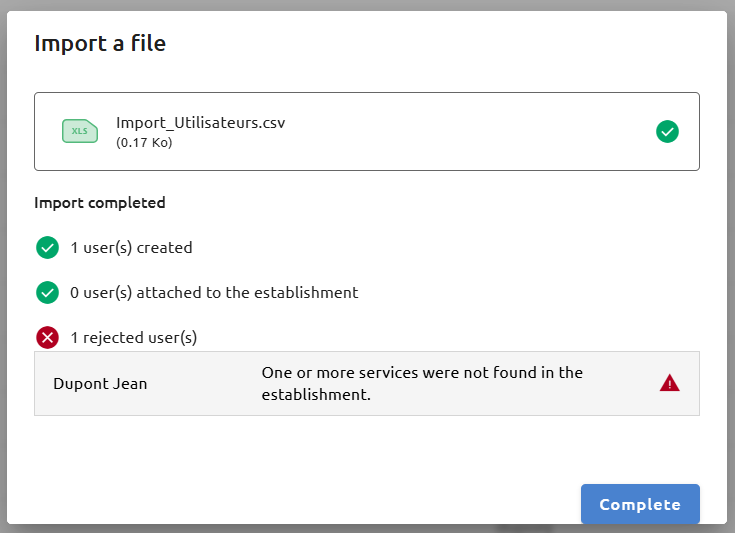
View and modify a user

A user's profile can be opened from the list by clicking on the Open icon when hovering over the user, or by double-clicking on the user. From here, you can modify the user's information. Then click on Save to apply the changes.
Reset a user’s password
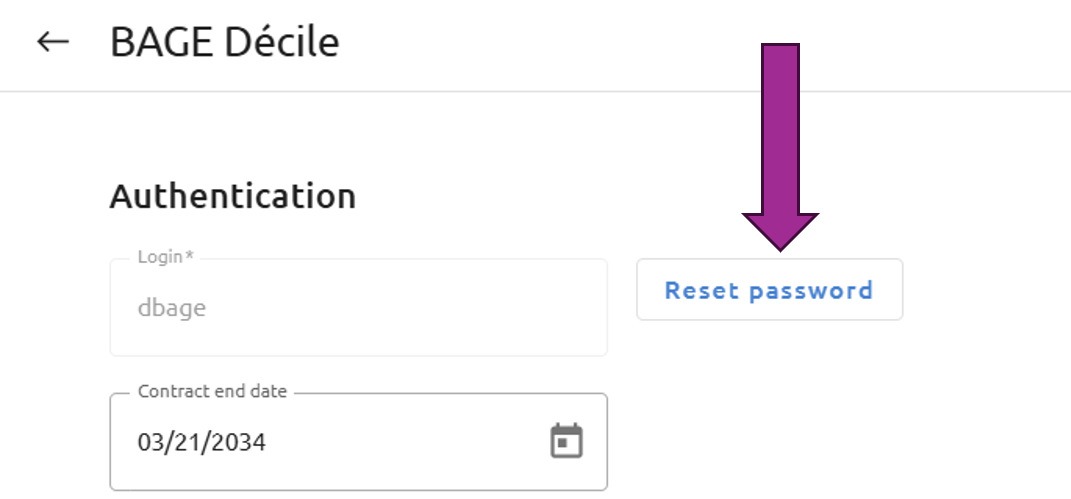
To reset a user’s password, open their profile and click on Reset password.
An email is sent to the user with a link to change their password. This link is valid for 24 hours.
Remove a user

To remove a user from your establishment from the user list, click on the Remove icon when hovering over.
You can also do the same operation directly from the user's profile. Click on the menu icon then choose Remove from establishment.
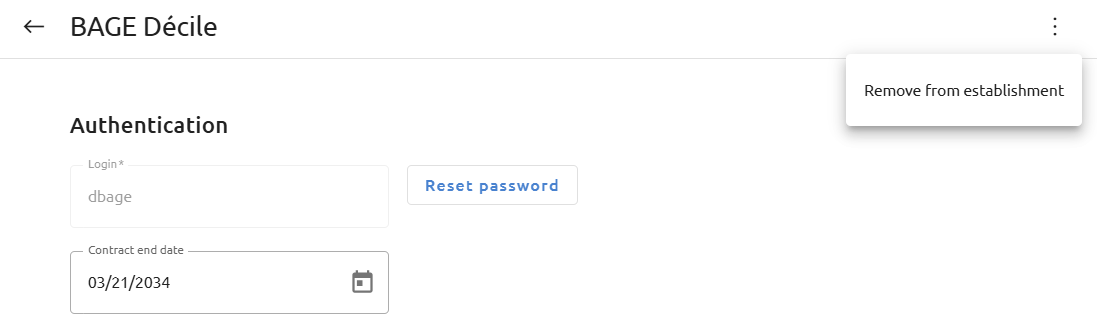
The user can still be present on the platform if they are attached to another establishment, but they will no longer be able to access your establishment.
It is not possible to permanently delete a user's account via the interface.
Every month, users without context for at least 30 days are permanently deleted.